
Account, Sign-in & Entitlements
Register an Account
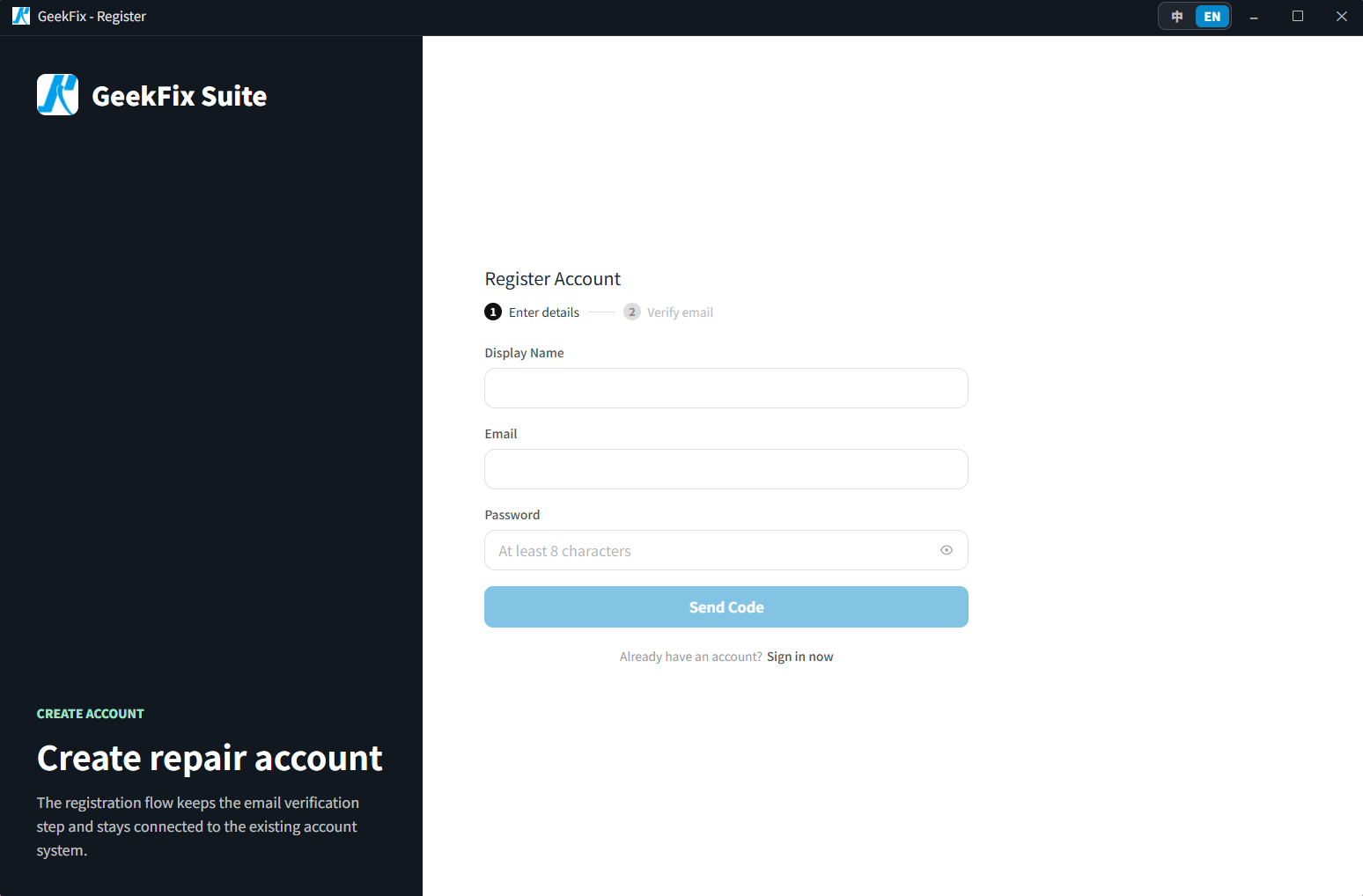
Registration has two steps: enter your details, then verify your email.
- Open GeekFix Suite. On the sign-in page, click Register account to open the register page.
- Enter your display name, email and password (at least 8 characters), then click Send Code.
- Check your inbox for the verification code and enter it to finish registration. If no email arrives, you can click Resend Code.
Keep your password safe. If you forget it, you can reset it yourself from the sign-in page — see "Forgot Password" below.
Forgot Password
- On the sign-in page, click Forgot password.
- Enter the email you registered with and click Send Code.
- Check your inbox, enter the code, set a new password (at least 8 characters) and click Reset Password.
- Sign in again with your new password.
Sign In
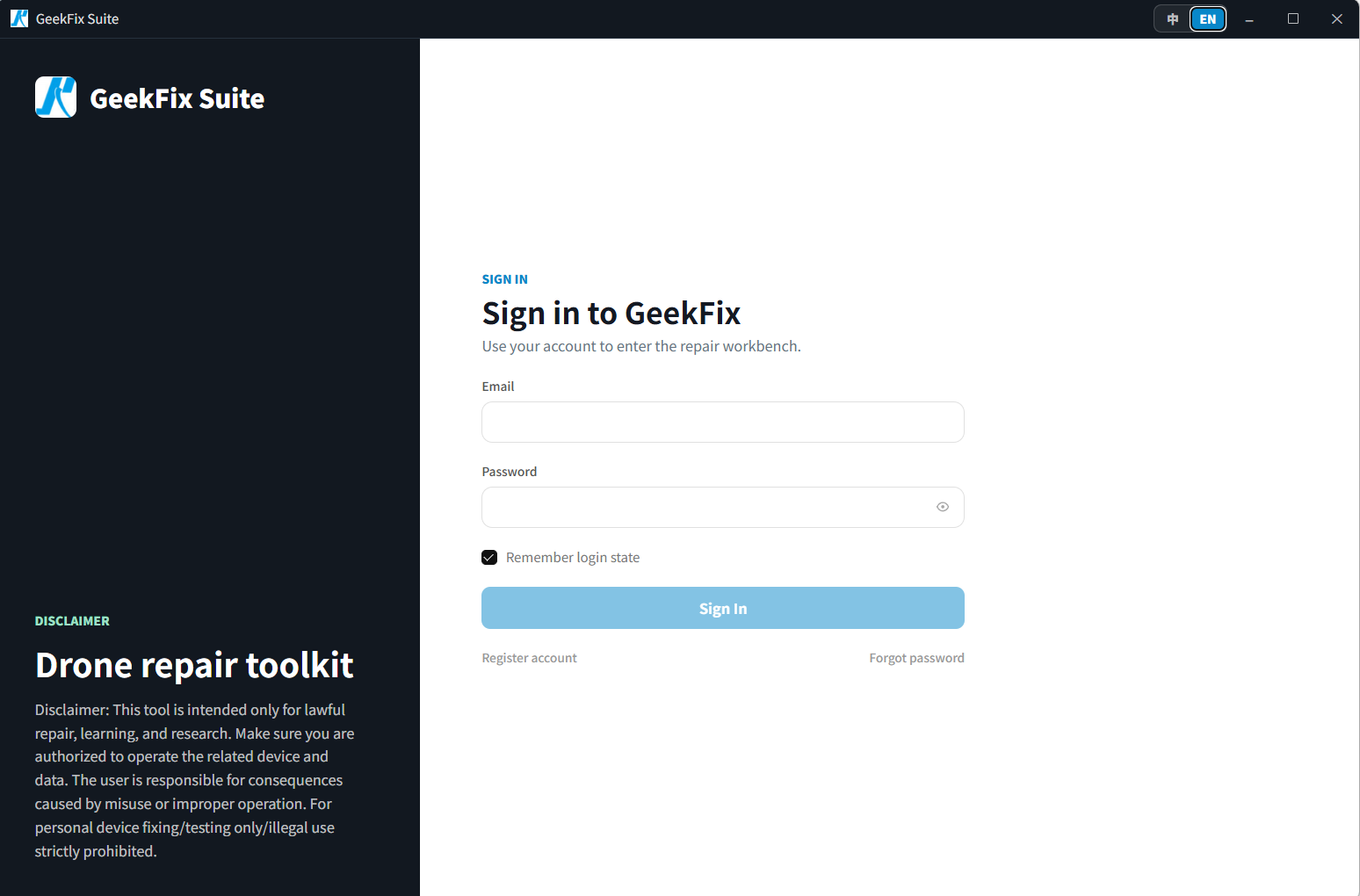
Enter your email and password, then click Sign In. Tick Remember login state to stay signed in the next time you open the app.
Entitlements & Plans
- A newly registered account starts on the Trial plan, which includes only a few read-only features. Use an activation code to unlock full access — see "Activate with an Activation Code" below.
- Each account has different features enabled, based on its plan. After signing in, you can only use the features your account is entitled to. If you try to run a feature that is not enabled, the app tells you that you do not have permission; once it is enabled, you can use it.
- Entitlements expire. When an entitlement expires or your account status becomes abnormal, the app shows a notice — renew it to continue using the software.
- Individual features may have their own on/off switches and expiry dates. Always check what your account actually shows.
See Account Permissions for details.
Activate with an Activation Code
Support issues activation codes in a format like XXXX-XXXX-XXXX-XXXX. A code lets you activate access yourself, or extend the service time of an activated account.
Three ways to redeem (all open the same redemption window):
- After signing in, the banner at the top of the main window: "You are on the trial plan. Enter an activation code to unlock full access." Click Activate Now. You can close the banner; once closed it stays hidden until you restart the app.
- When you run a feature that is not enabled, the notice includes an Activate Now button.
- In Settings → Account, the Redeem Activation Code section: enter the code and click Activate Now.
Result and rules:
- On success the app shows "Activation successful". Sign in again — the new plan takes effect only after you sign back in.
- If your account is already activated, redeeming another code extends the service expiry date on top of the current one.
- A code whose access level is lower than the access already activated on your account cannot be redeemed.
- Too many incorrect codes in a row temporarily blocks redemption — wait about 10 minutes and try again; if it still fails, contact support to check the code.
You can always check Current Plan and Service Expires At in Settings → Account.
Device Binding
- Each account is bound to one PC. Signing in on a new PC for the first time uses up the binding slot.
- If you cannot sign in after switching PCs, contact 181806465@qq.com (WhatsApp: +8618627713849) to unbind the old device, then sign in on the new PC.
Sign Out
Open Settings → Account and click Sign Out.