
TOF Depth Sensor Calibration
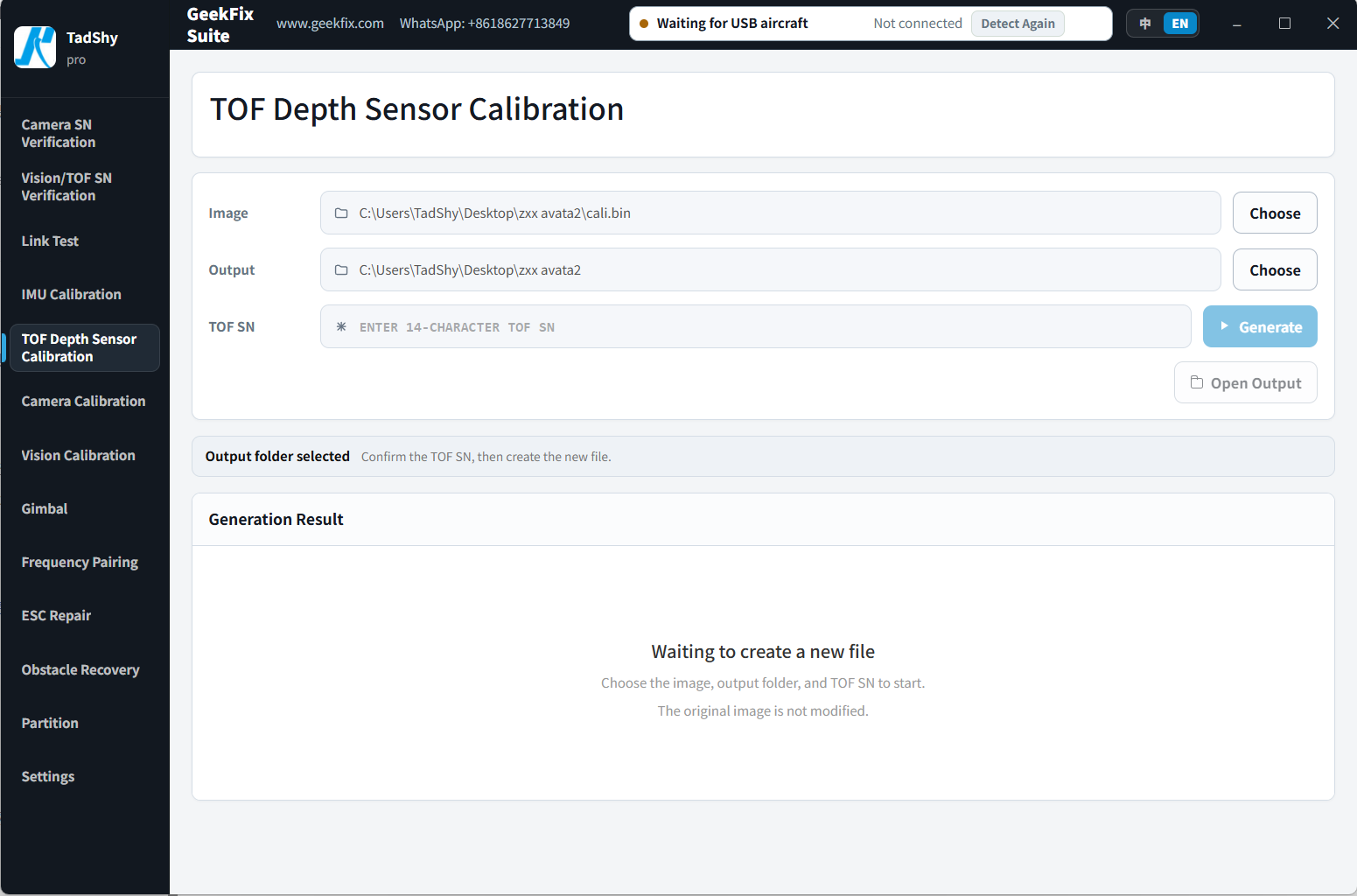
Analyzes an offline image file on your computer, repairs the TOF depth sensor calibration data in it, and creates a new file — the original image is not modified.
When to Use
- The device's TOF depth sensor reports an error and the calibration data needs repair at the image level.
Before You Start
- Prepare the cali image file for the matching model (exported via Partition R/W, or obtained from another source).
- Know the new TOF sensor's serial number.
- Your account has TOF Depth Sensor Calibration access.
Steps
- Open TOF Depth Sensor Calibration.
- Click Choose on the Image row and select the cali image file for the matching model.
- Click Choose on the Output row and select the folder where the new file will be saved.
- Enter the new TOF serial number in TOF SN.
- Click Generate.
- Click Open Output to find the generated file.
- Write the new file back to the device (using Partition R/W or another programmer) and restart the device to confirm.
Reading the Results
- The software identifies the image's data layout and only creates a new file when it meets the requirements. If it doesn't, it clearly rejects the image and states why — it never guesses or modifies blindly.
- The new file is saved to the output folder you chose; the original file stays unchanged.
Notes
- The new TOF SN must be 14 characters of uppercase letters/digits, and its first three characters must match the old SN; otherwise the file cannot be generated.
If Something Goes Wrong
- The image doesn't meet the requirements: check the image source and integrity, then retry.
- The SN doesn't follow the rules: check the old and new SNs you entered.
- Repeated failures: take a screenshot (including the message) and contact 181806465@qq.com.
Supported Range
Detection is based on the image's content layout, not a model list. See the Supported Models for details.