
Interface Tour
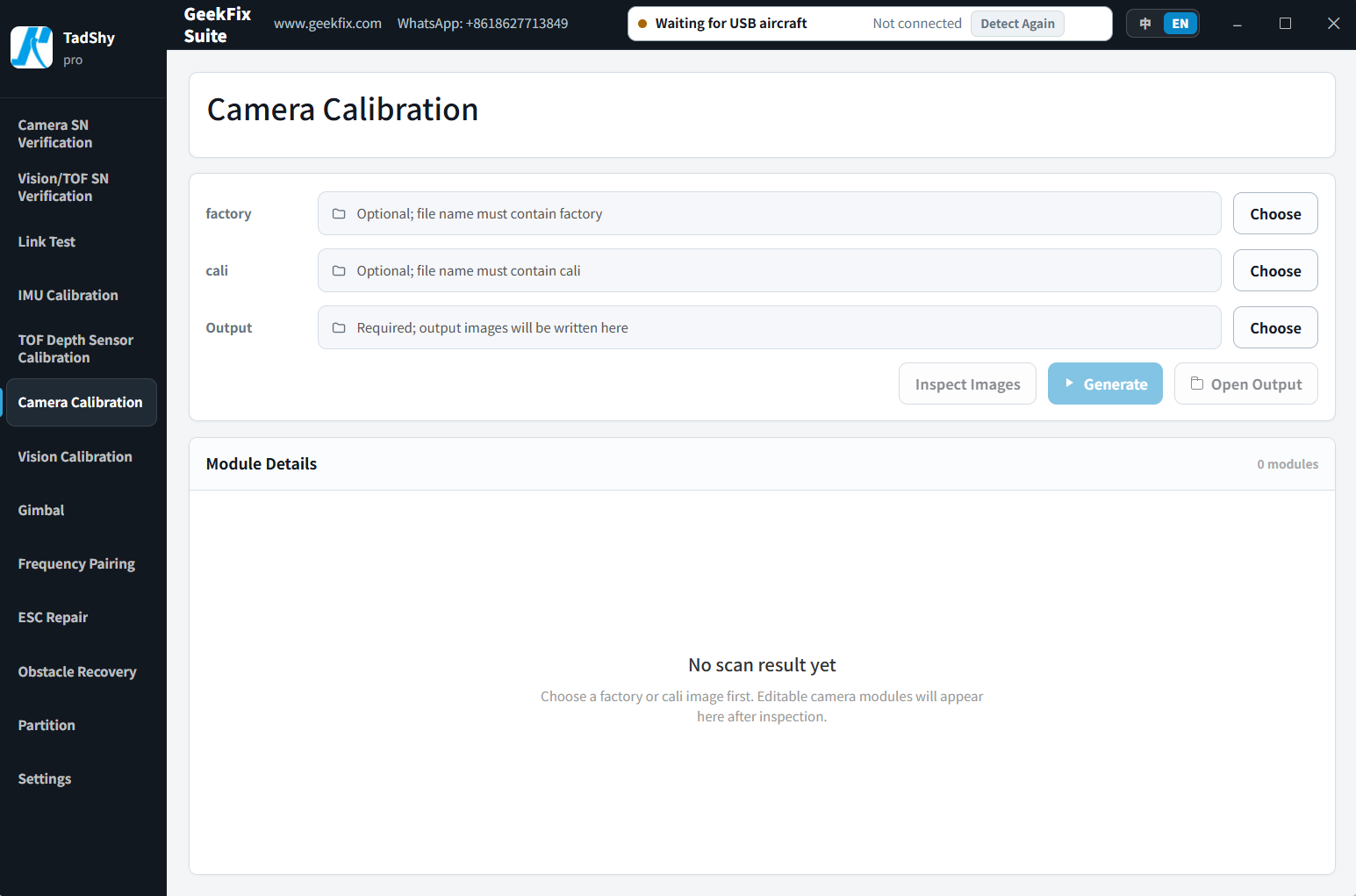
After signing in you land on the main window, which looks like this:
The Sidebar
The dark sidebar on the left holds all feature entries — click one to switch to it:
- Camera SN Verification
- Vision/TOF SN Verification
- Link Test
- IMU Calibration
- TOF Depth Sensor Calibration
- Camera Calibration
- Enterprise Camera Calibration (only visible when your account has the matching access)
- Vision Calibration
- Gimbal (the page title is "Gimbal Calibration")
- Frequency Pairing / ESC Repair / Obstacle Recovery (only visible when your account has the matching access)
- Partition (the page title is "Partition R/W")
- Settings
At the top of the sidebar is your account card, showing your display name and account tier — click it to jump to account settings. Settings sits at the bottom of the list.
Aircraft Status (Top Bar)
The top bar shows a pill with the current connection status of your device. When no device is connected, the pill reads Waiting for USB aircraft / Not connected. Once a device is recognized, the pill shows the model name, USB connected and the serial number, along with a Detect Again button — use it if the detection looks wrong. Please read Connect a Device before connecting a device.
The top bar also displays our website www.geekfix.com and WhatsApp contact (+8618627713849), plus a quick 中/EN toggle for switching the interface between Chinese and English.

Settings
The Settings entry at the bottom of the sidebar includes:
- Interface Language: switch between 中文 (Chinese) and English (EN)
- Minimize to tray: when enabled, clicking the close button minimizes the app to the system tray instead of quitting
- Account: view your current account, plan and service expiry date, redeem an activation code, and sign out
- About: shows the software version (have it ready when contacting support)
Window Controls
The top-right corner of the window has minimize, maximize and close buttons.
Next Steps
- Connect your first device: Connect a Device
- Jump straight to a feature: Feature Guides